Browse and reopen saved reports
Find an old report, view it, edit it, or delete it.
Every report — draft and finalized — stays accessible under the project's Reports list. You can read it, edit it, export a PDF, or delete it.
Steps
- 1
Open the Reports list
From a project overview, tap the Reports action row. The list shows every report sorted by creation date (newest first). Drafts and finalized reports are interleaved by date — drafts are marked with a peach DRAFT badge and rendered with a cream off-white card background.
- 2
Open a report
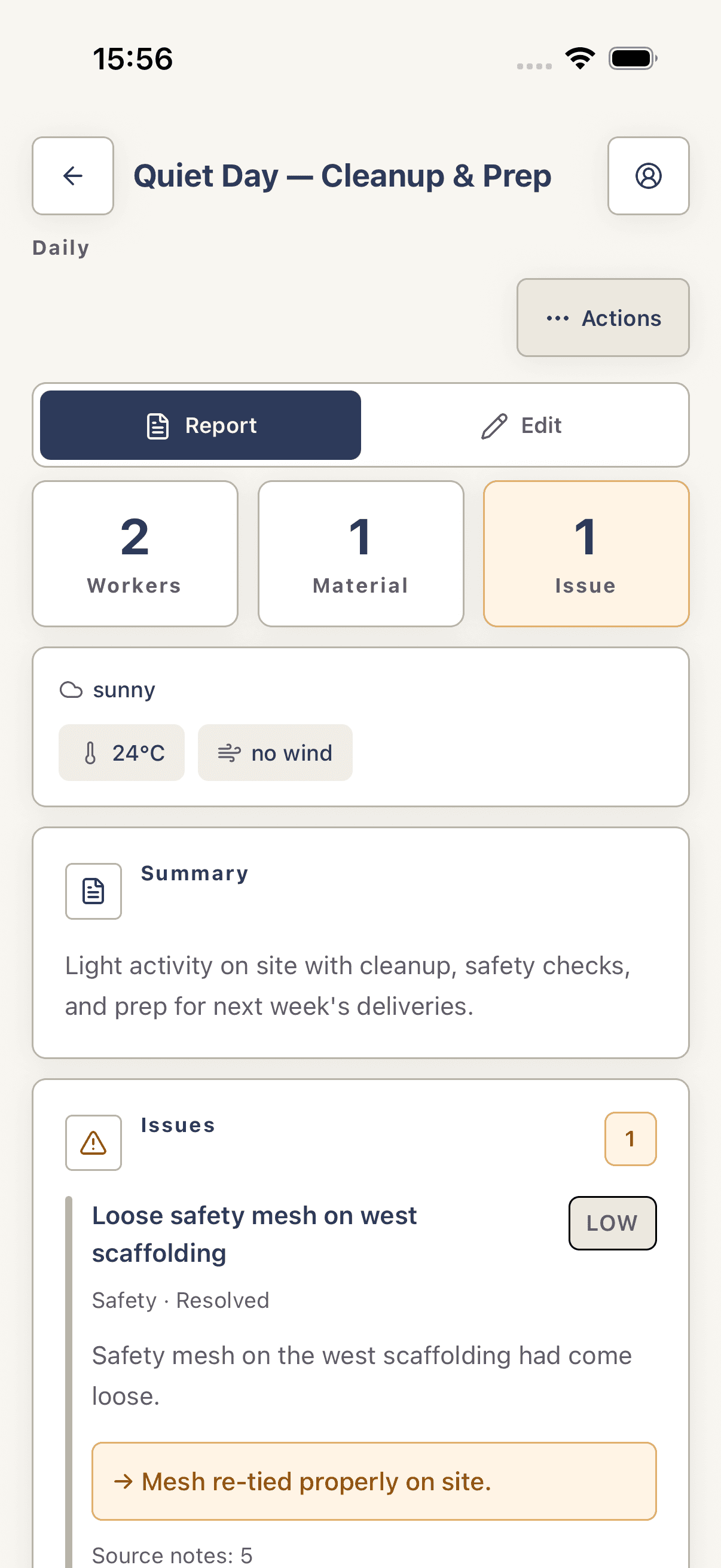
Tap any finalized row to open the report detail screen with Report and Edit tabs. Tapping a draft row instead jumps you back into the report generator (Notes/Report tabs) so you can keep working on it.
- 3
Edit
See Edit a report manually — switch to the Edit tab on the detail screen.
- 4
Export or delete
Scroll to the ⋯ Actions button to open the Report Actions sheet → View PDF / Save PDF / Share PDF to export, or Delete Report to remove. Deletes are permanent and confirmed via a destructive dialog.
Troubleshooting
I tapped a draft expecting the report detail screen but landed in the note generator.
By design — drafts open in the Notes/Report generator so you can keep working on them. Finalize the draft (Finalize Report at the bottom of the Report tab) to make it open the static detail screen instead.
Reports list is empty even though I created reports on another device.
Pull down on the list to force a sync, or pull down on the projects list one screen up. Reports sync per-user; signing in on a fresh device triggers a full pull on first load.