Generate an AI report
Turn the notes, photos, and voice memos you captured today into a structured site report.
The AI report generator reads every note attached to a draft and writes a daily site report — weather, workers, materials, issues, next steps, and free-form sections. You stay on the Notes tab while you collect input, then tap one button to produce the report.
Steps
- 1
Open the project and start a new report
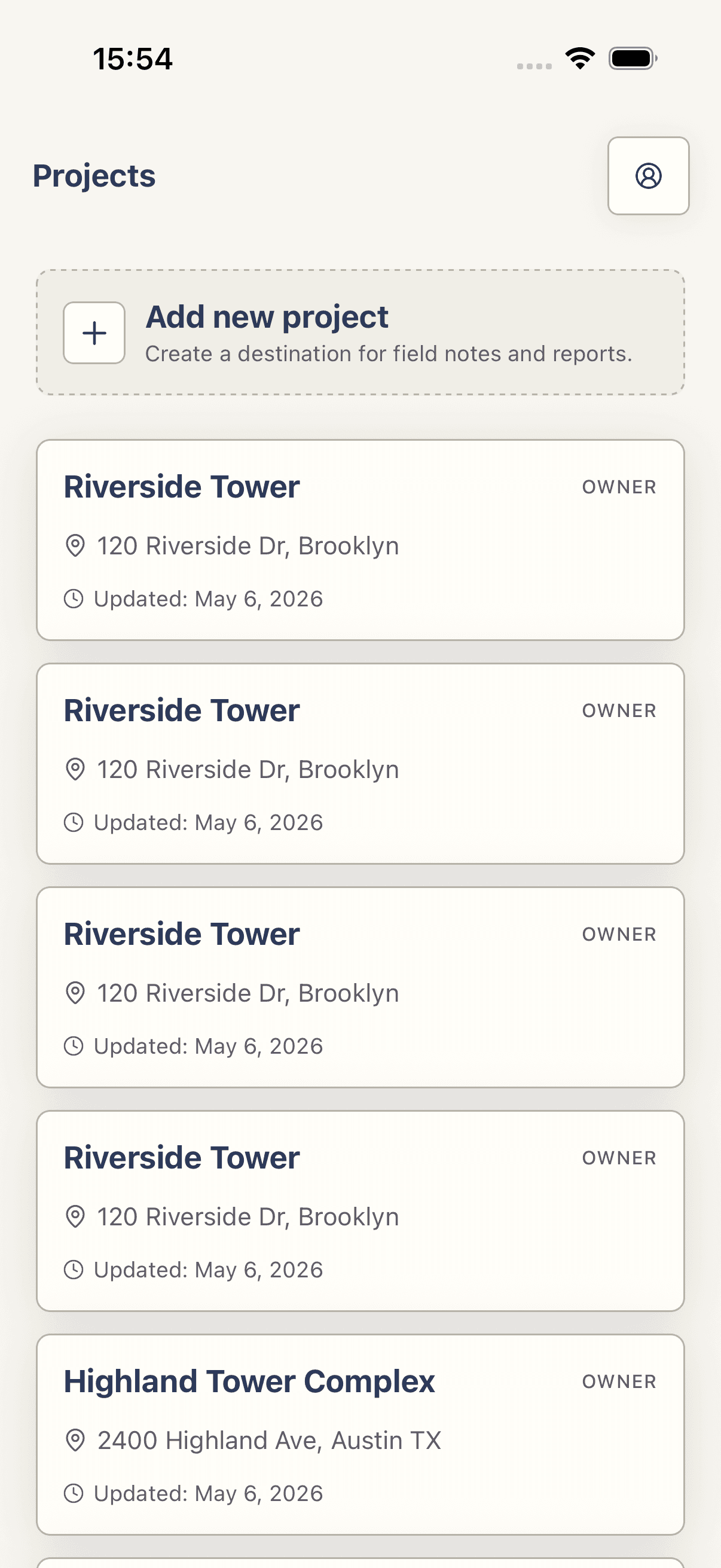
From the Projects tab, tap the project you're working on. On the project overview, tap the Reports action row, then tap the New report card (subtitle _Start a draft for this project._). The app drops you straight into the new draft on the Notes tab.
- 2
Capture what happened on site
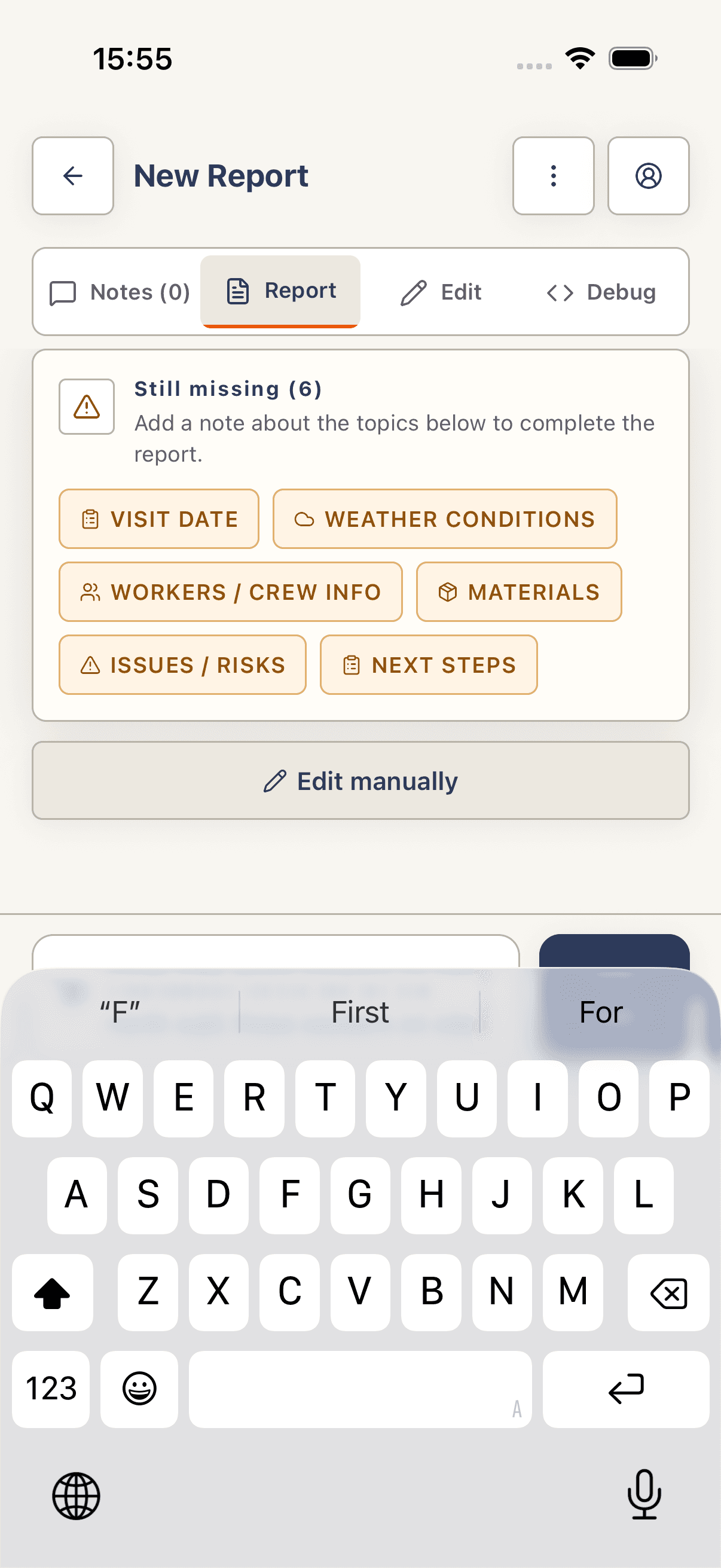
Type into the Type a site note... field. While the field is empty you'll see separate inline Photo and Voice buttons next to the composer — tap Photo to attach an image from camera or library, or Voice to record a voice note (it auto-transcribes). As soon as you start typing, those collapse and an orange Add button appears; tap it to commit the text note as a numbered timeline row.
- 3
Tap Generate report (or Update report)
When the timeline reflects the day, scroll to the bottom of the Notes tab and tap the orange Generate report button. After the first run the button changes label depending on state: Update report (N new note(s)) when you've added notes since the last generation, or Report up to date (disabled) when there's nothing new to fold in. While generating it shows Generating….
- 4
Wait for the report to stream in
The app switches to the Report tab and renders skeleton placeholders while the AI fills in each section. Generation usually finishes in 5–15 seconds. Don't navigate away — backgrounding the app cancels the stream.
- 5
Review the sections
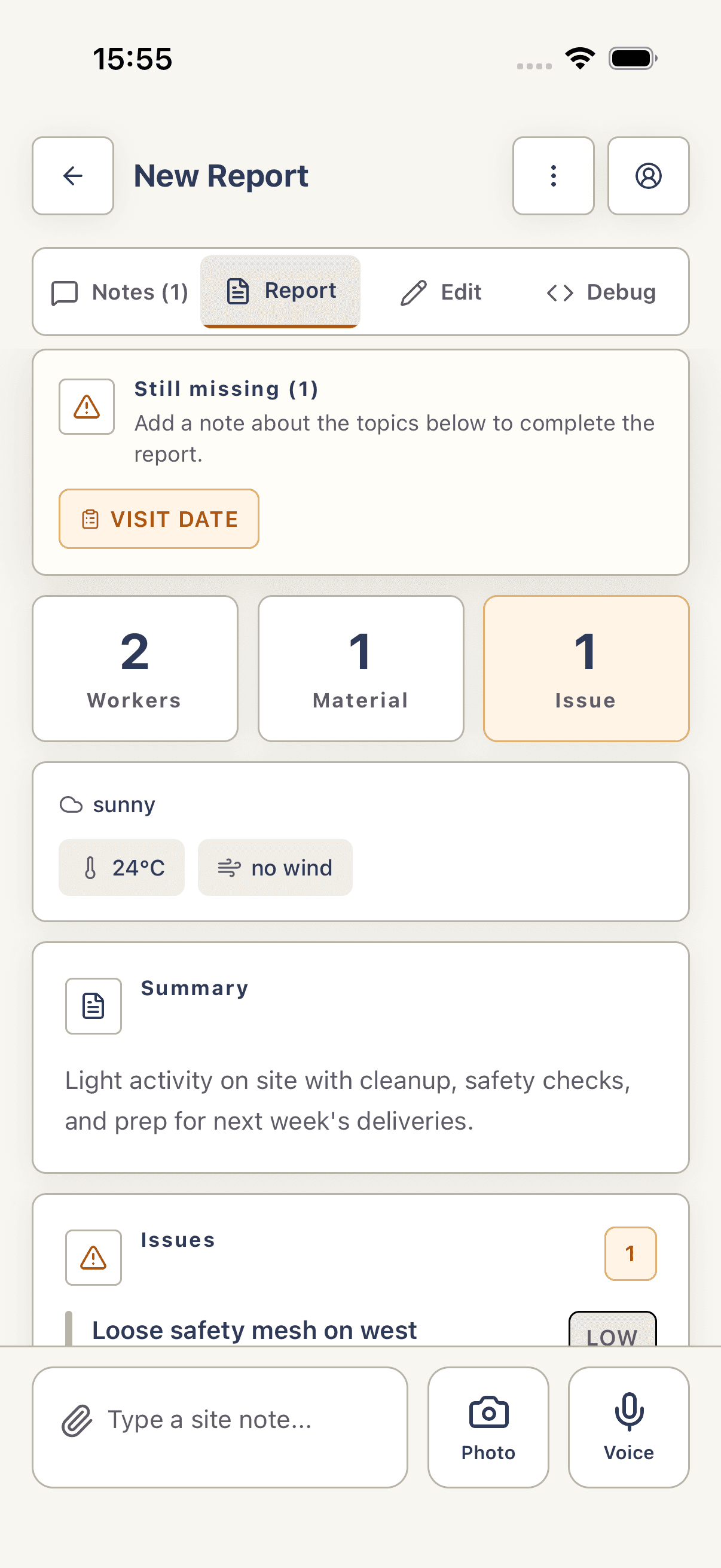
Scroll the Report tab to read the generated weather, workers, materials, issues, next steps, and free-form cards. Anything you don't like can be edited in the Edit tab (see Edit a report manually) or regenerated by adding a clarifying note and tapping Update report again.
- 6
Finalize when you're happy
Scroll to the bottom of the Report tab and tap Finalize Report. Confirm in the dialog. The draft becomes a saved report.
Tips
- There's no penalty for re-running. Each tap of Update report rewrites the whole document from the latest notes.
- If a voice transcript is wrong, long-press the voice note to copy the transcript text — then add a corrected text note before regenerating.
Troubleshooting
Generate report button is missing.
The timeline is empty. Add at least one note (text, photo, or voice) and the button appears at the bottom of the Notes tab.
Button says Report up to date and is disabled.
There are no new notes since the last generation. Add a note and the button flips back to Update report (N new note(s)).
Generation fails with an inline error above the skeletons.
The AI provider rejected the request — usually a transient network or rate-limit blip. Tap Update report again to retry. If it persists, the error text shown above the skeletons identifies the upstream cause.
Report comes back empty or with mostly N/A.
Your notes were too sparse. Add specifics — weather, headcount, what work happened — then tap Update report.