Create and manage projects
Set up a new construction site, edit its details, or remove it.
Each project is one site. The Projects tab is the home screen — every report and member lives under a project.
Steps
- 1
Create a new project
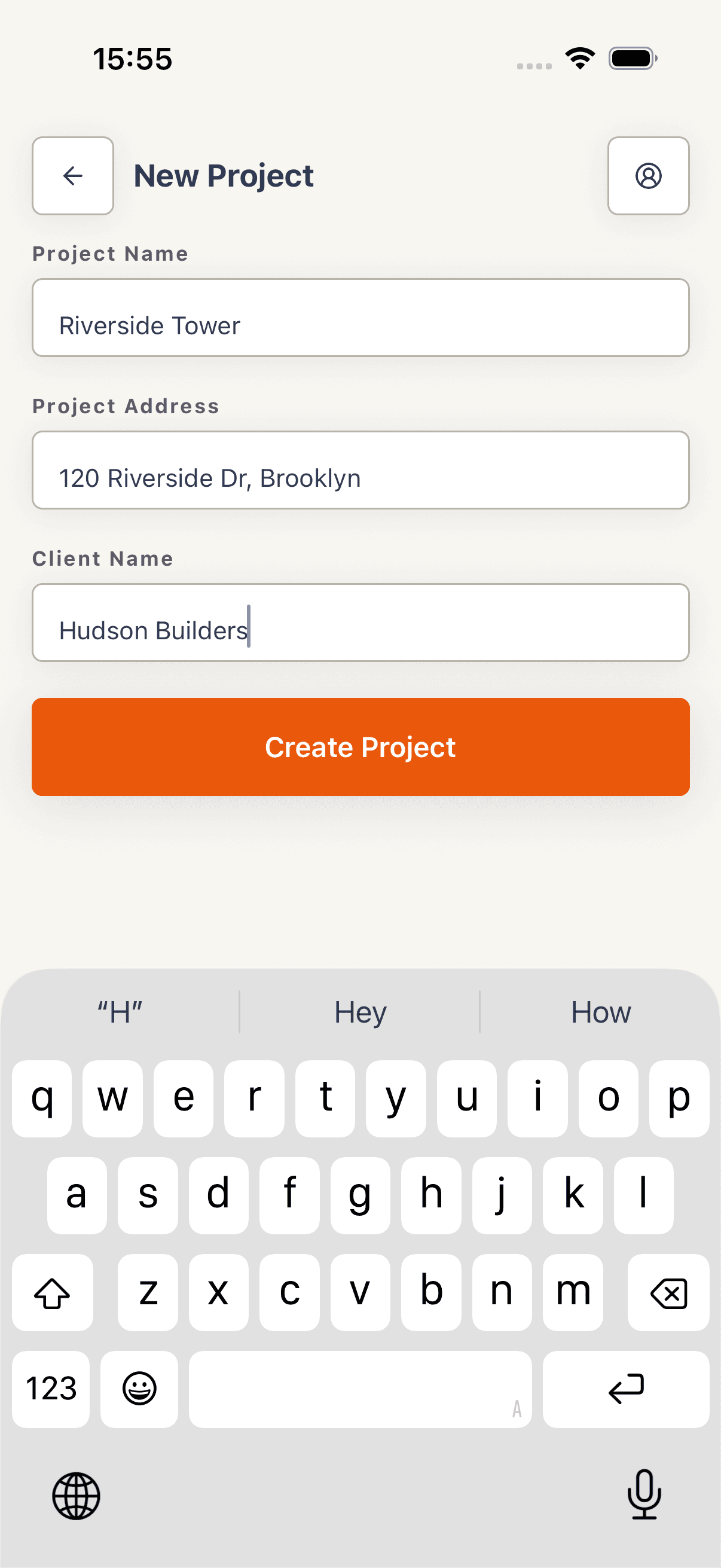
On the Projects tab, tap the dashed Add new project card at the top of the list (or Add your first project if the list is empty). Fill in Project Name, Project Address, and Client Name. Tap Create Project. The new project appears in the list.
- 2
Open a project
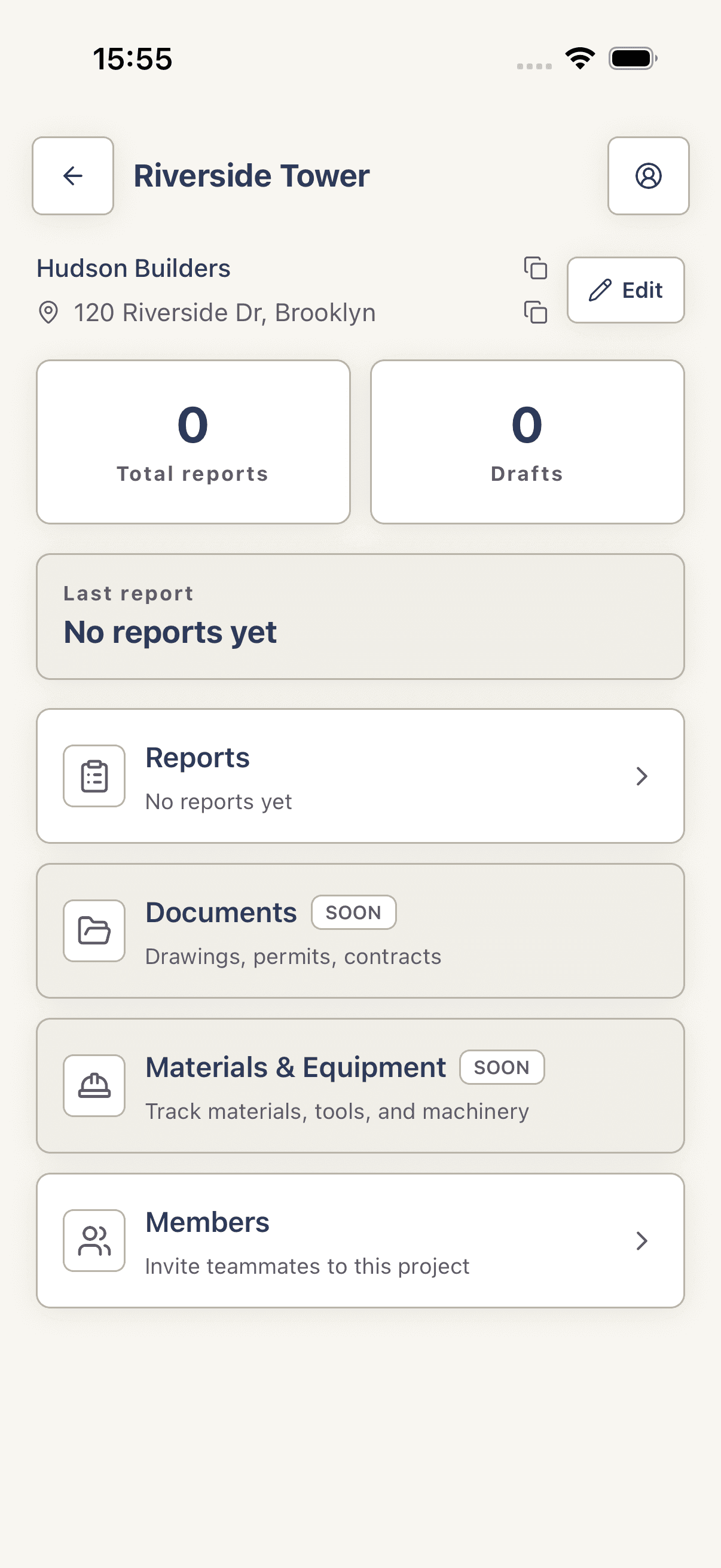
Tap any row in the projects list. You land on the project overview, which shows Total reports and Drafts stat tiles, a Last report card, and four action rows: Reports, Documents (badged _Soon_), Materials & Equipment (_Soon_), and Members.
- 3
Edit project details
On the overview, tap the pencil icon next to the client name or address (in the body, not the header). Update Project Name, Project Address, or Client Name and tap Save Changes.
- 4
Delete a project
From the Edit Project screen, scroll to the bottom and tap the red Delete Project button. A Delete Project confirm dialog appears — tap Delete to confirm. Deletion is permanent.
Tips
- Project Address and Client Name appear on every PDF report header — get them right when you create the project.
- Pull down on the projects list to refresh.
Troubleshooting
Projects list shows a spinner forever after first sign-in.
The initial sync from the server is still running. Wait a few seconds — the list hydrates once the first pull completes. If it stays empty after a minute, pull down to force a refresh.
I created a project but it's missing on another device.
Pull down on the projects list on the second device to trigger a sync. Projects propagate via the sync engine, not push.