Edit a report manually
Override what the AI wrote on any saved report.
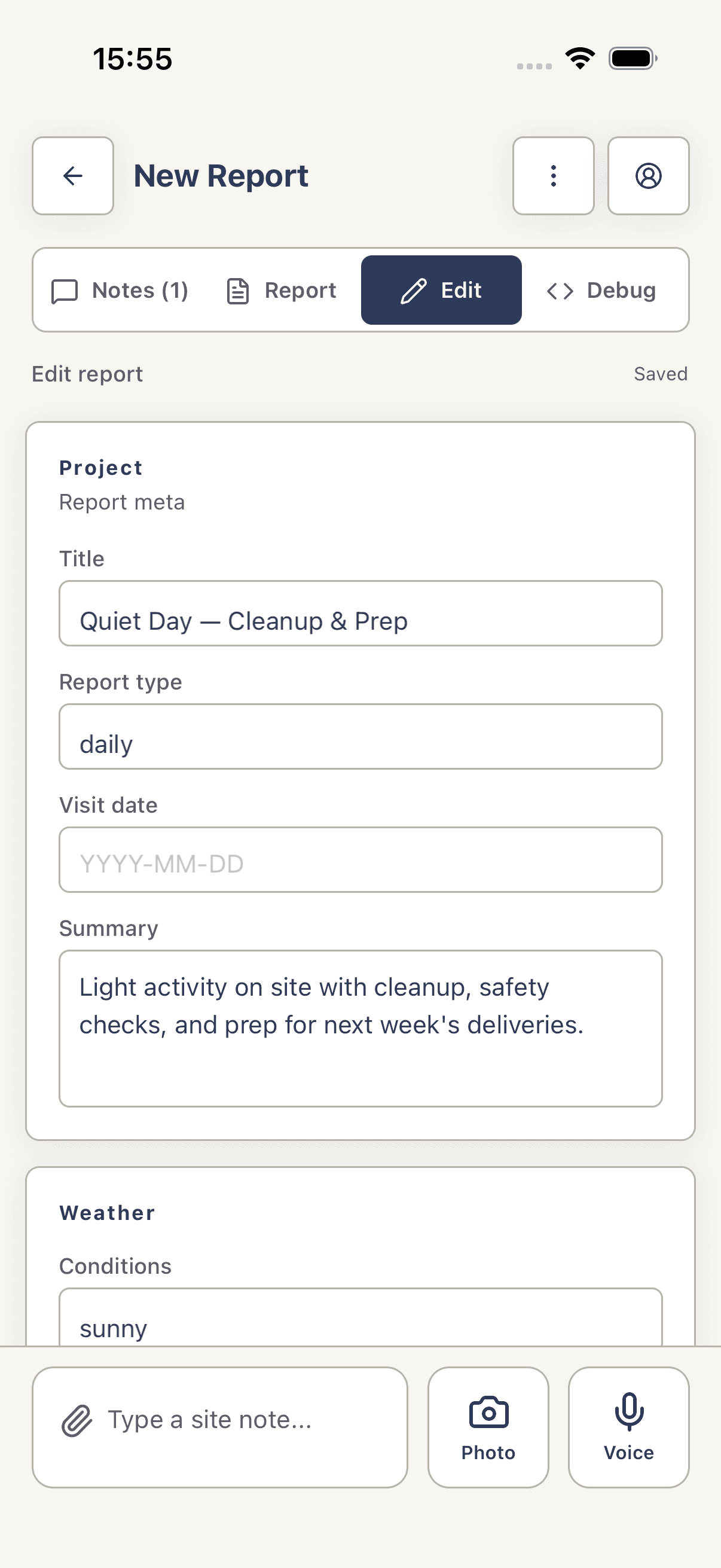
Every saved report has two tabs at the top: **Report** (read-only rendered view) and **Edit** (one big form covering every section). All sections are always editable in the Edit tab — there's no per-card pencil. Edits autosave in the background; there's no Save button.
Steps
- 1
Open the report
Open a draft from the Drafts list, or a finalized report from the Reports list.
- 2
Switch to the Edit tab
Tap the Edit tab at the top of the report screen. The whole report is replaced by an editable form covering Weather, Workers, Materials, Issues, Next Steps, and any free-form sections.
- 3
Edit fields and rows
Type directly into any field. For list sections, use Add role (Workers), Add material (Materials), Add issue (Issues), Add next step (Next Steps), or Add section (free-form). Each row has a Remove button (trash icon) that asks for confirmation before deleting.
- 4
Switch back to Report when done
Tap the Report tab to see your changes rendered. There is no explicit save action — autosave persists everything.
Tips
- Autosave fires 1.5 seconds after you stop typing, and again whenever the app backgrounds. There is no Save button anywhere on the Edit tab.
- If you edited a finalized report, the next View PDF / Share PDF will reflect your changes.
Troubleshooting
Edits I made on the Edit tab don't appear in the rendered Report tab.
Autosave debounces 1.5s after the last keystroke. Stop typing, wait two seconds, then tap Report. Backgrounding the app also flushes pending edits immediately.
Numeric or boolean field shows quoted text on the Report tab.
The schema stores all field values as strings. The Report tab renders them as written — type a plain number (e.g.
12) without quotes.