Getting started
Sign in for the first time and finish onboarding.
First launch: sign in with your phone number, then fill in your profile. After that the app drops you on the Projects tab.
Steps
- 1
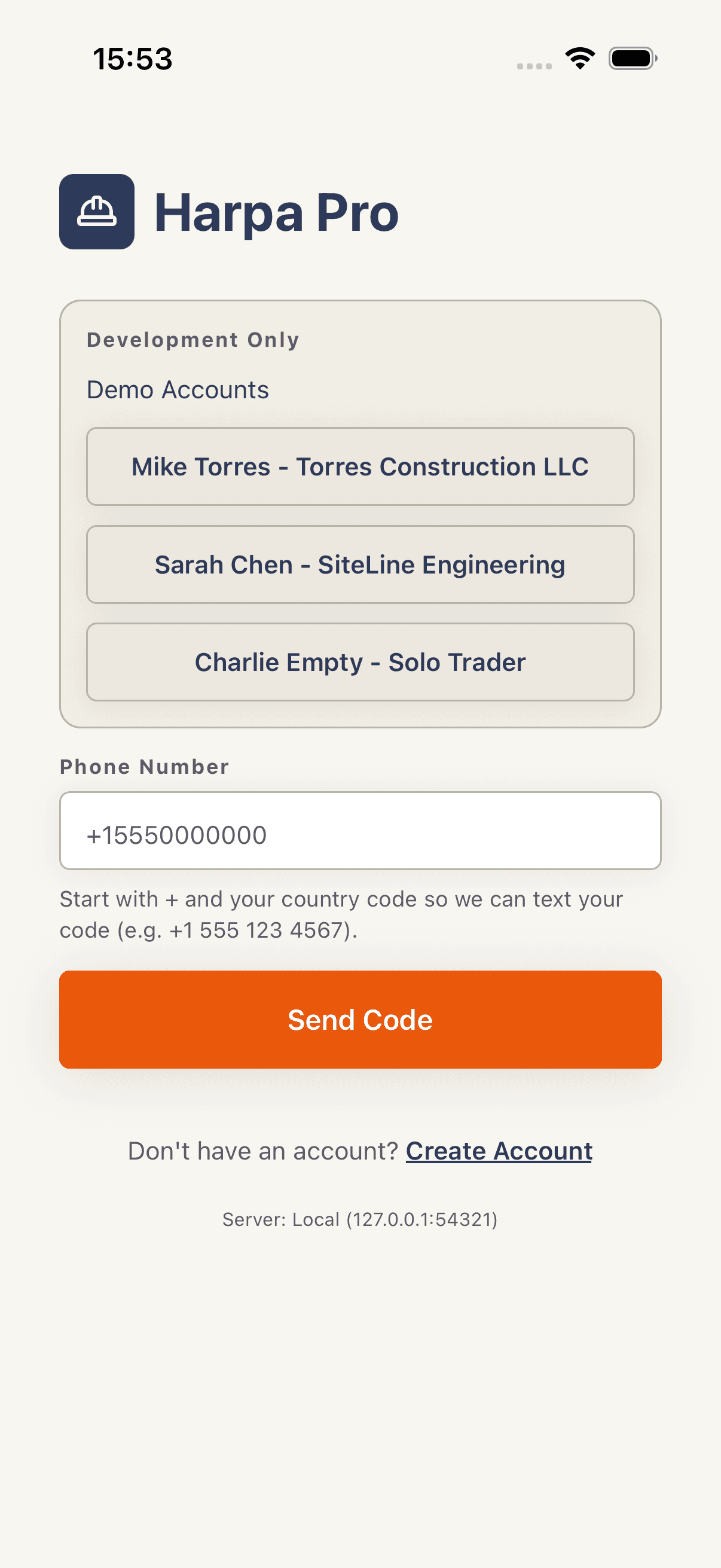
Enter your phone number
On the login screen, type your number into the Phone Number field with country code (e.g.
+15551234567). Tap Send Code. (Returning users on the same device may see a Use a different number link if a previous number is remembered — tap it to clear and re-enter.) - 2
Enter the SMS code
Check your messages for the 6-digit code. Type it into the Verification Code field and tap Verify Code. If you mistyped your number, tap Change Number to go back. (Dev builds use a fixed test code — see your team's setup notes.)
- 3
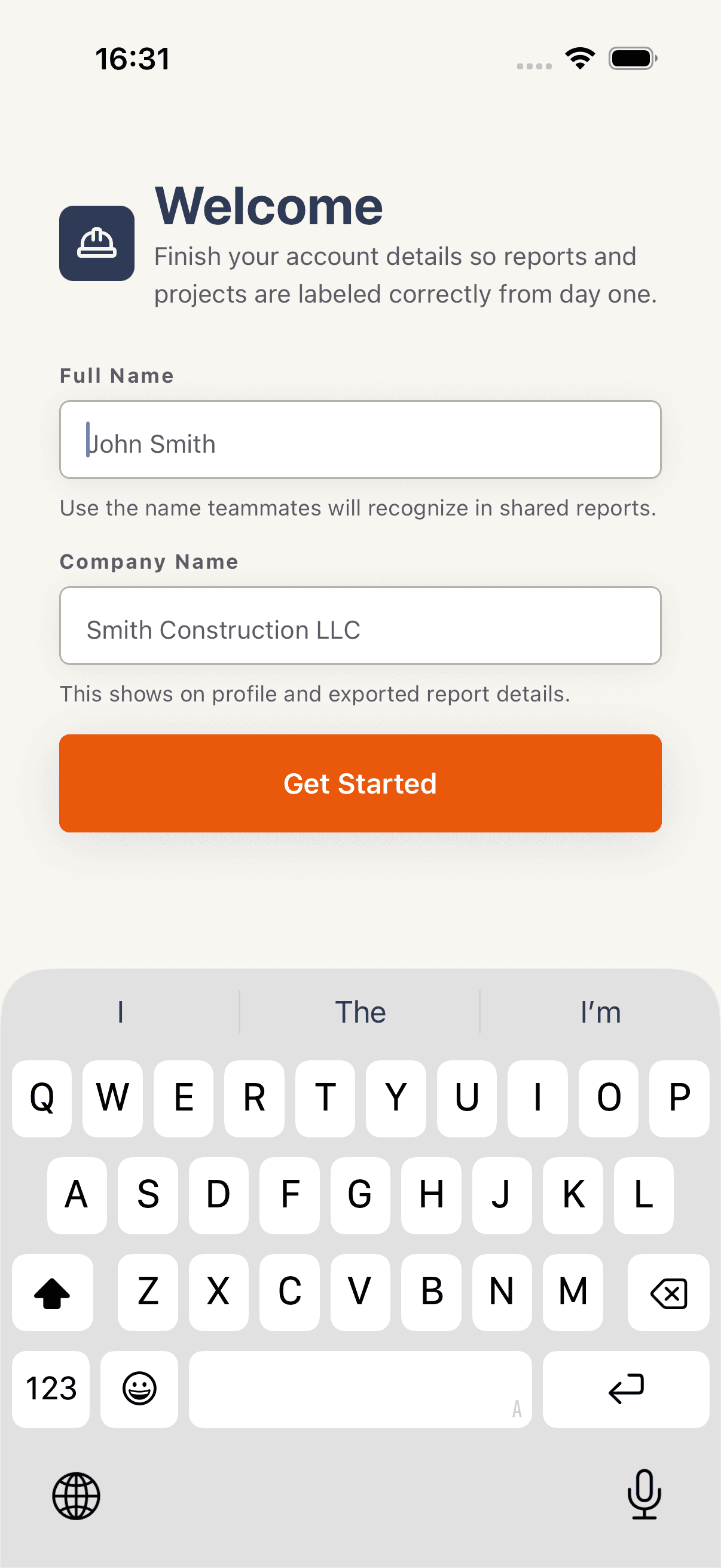
Complete onboarding
On first sign-in only, the Welcome screen appears. Enter your Full Name and Company Name, then tap Get Started.
Tips
- Already onboarded? You skip the Welcome screen on subsequent sign-ins.
Troubleshooting
Pressing Send Code does nothing or errors out.
The phone field needs
+plus country code.15551234567without+is rejected;+15551234567works.I never receive the SMS code.
Wait 30s and tap Send Code again. Some carriers throttle short-code SMS; if it still doesn't arrive, tap Change Number and re-enter to confirm there's no typo.
After signing out and signing in as a different user, I see the previous user's projects briefly.
Force-close and reopen the app. Recent builds clear the local SQLite file and React Query cache on sign-out, but a stale screen mid-transition can briefly render. The data layer reloads correctly once you reach Projects.