Add members to a project
Share a project with teammates and pick what they can do.
Projects are private to their creator until you add members. Members are invited by phone number and assigned a role; access is enforced server-side.
Steps
- 1
Open the Members screen
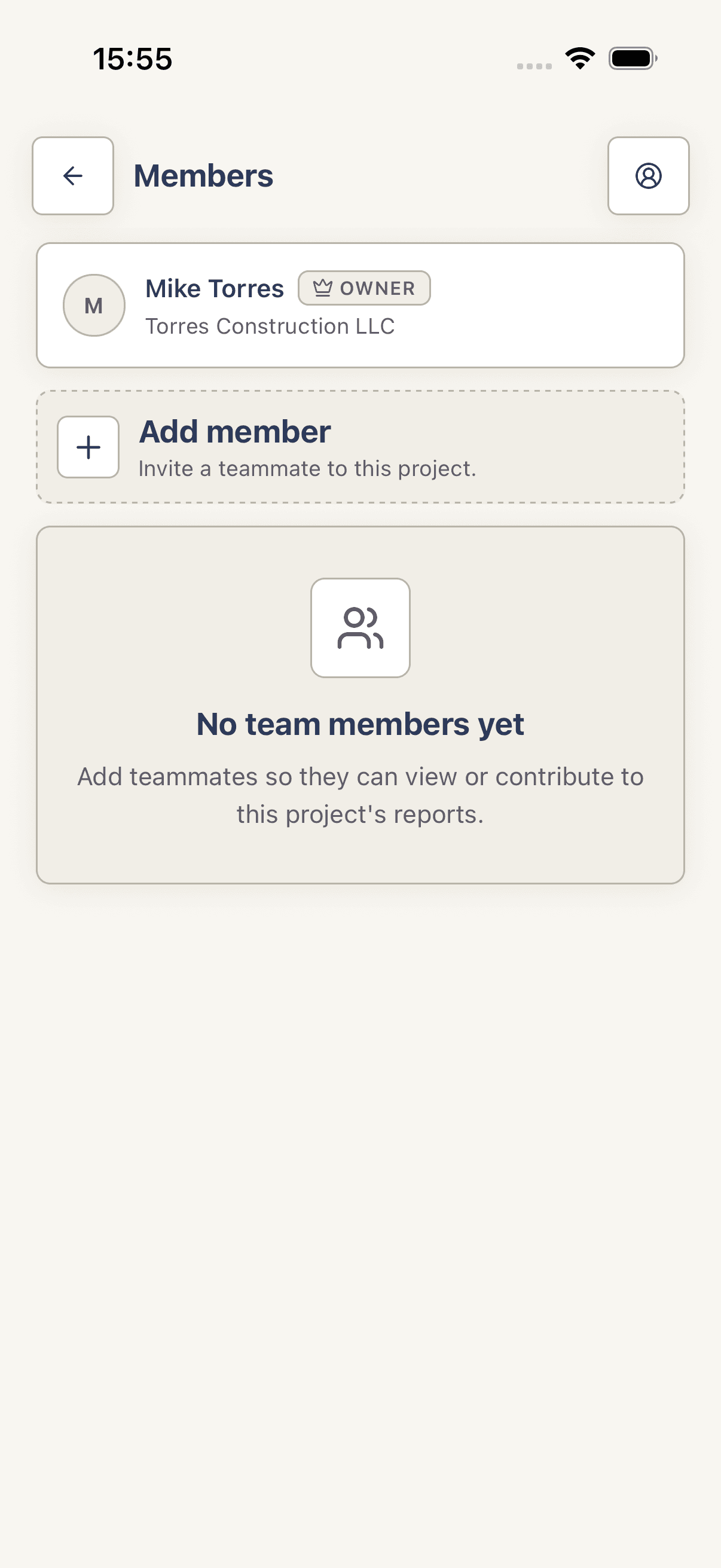
From a project overview, tap the Members action row. The members list shows everyone with access plus their role. The header has a Back button only — there is no people icon.
- 2
Add a member
Tap the Add member card. In the modal, enter the Phone number with country code (e.g.
+15559876543). Pick a role: Admin, Editor, or Viewer (the project's Owner role is auto-assigned to the creator and cannot be selected). Tap Add Member. - 3
Remove a member
On the member's row, tap the Trash icon. A Remove Member confirm dialog appears — tap Remove to confirm. The member loses access to all reports for this project.
Tips
- Admin can manage members and project settings. Editor can write notes and edit reports. Viewer is read-only. Owner is the creator and is set automatically.
- There's no in-app way to change an existing member's role yet — remove them and re-add with the new role.
- Members must already have a Harpa Pro account on that phone number — invitations don't send SMS yet.
Troubleshooting
Add Member shows _phone number with country code_ error.
Add the leading
+and country code (e.g.+1for US). Local-format numbers are rejected.Member list doesn't refresh after I add someone on another device.
Pull down on the projects list to force a sync, then reopen Members. Member changes propagate when projects sync.